
*Cube-Host– full cloud services!!
*Cube-Host– full cloud services!!
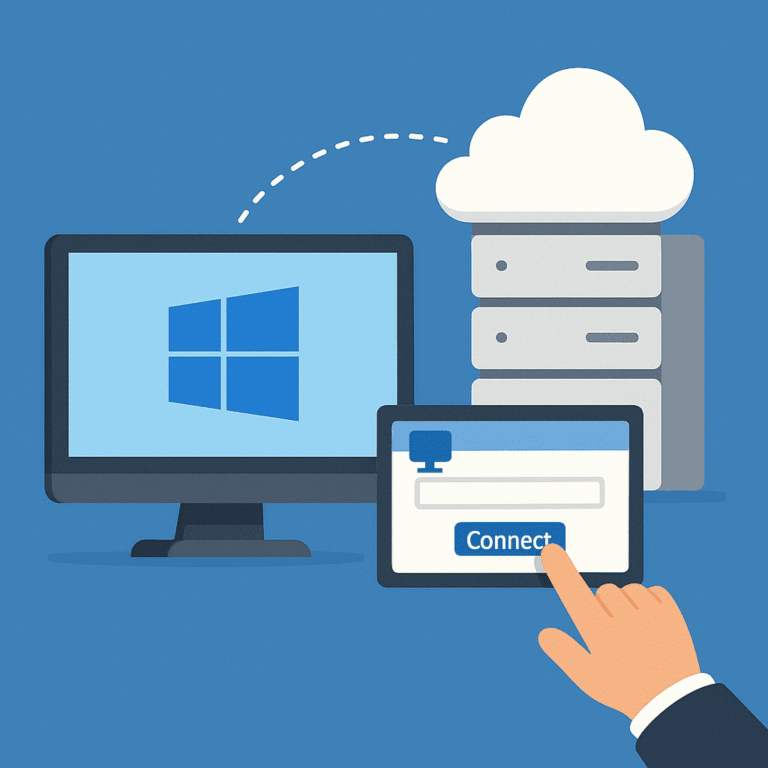
RDP (Remote Desktop Protocol) is the standard way to access and manage a Windows Server remotely. This guide explains how to enable RDP safely, connect from Windows/macOS/Linux, and troubleshoot the most common issues (ports, firewall, NLA, credentials, and “black screen”).
For stable remote work, choose a reliable Windows VPS on fast VPS hosting. If you also manage mixed infrastructures, a Linux VPS is often used as a jump host/VPN gateway for secure access.
If you can already access the server via provider console (or temporary access method), enable RDP in one of these ways.
1) Open the Run window (Win + R) and run:
SystemPropertiesRemote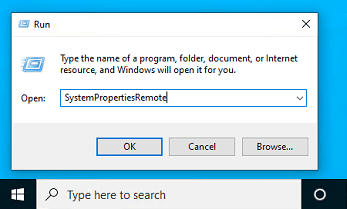
2) On the Remote tab:
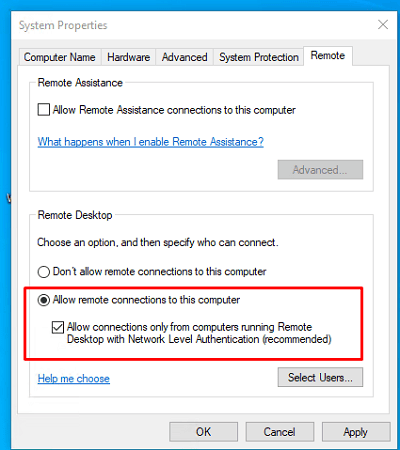
Settings → System → Remote Desktop → Enable. Keep NLA enabled unless you are troubleshooting (and then re-enable it).
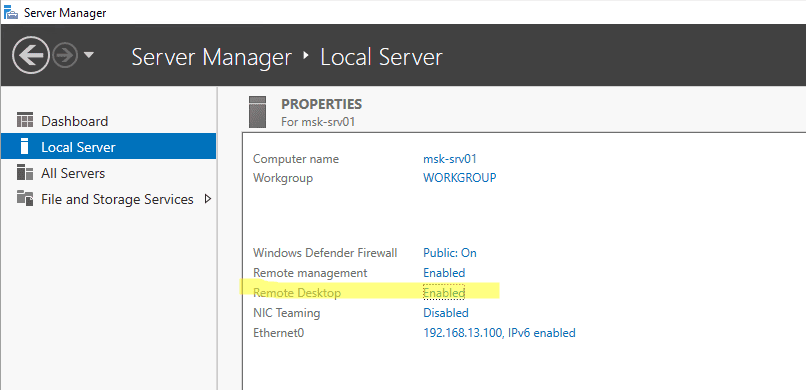
Server Manager → Local Server → Remote Desktop = Enabled.
RDP uses TCP 3389. Modern clients may also use UDP 3389 for better performance. Two places must allow it:
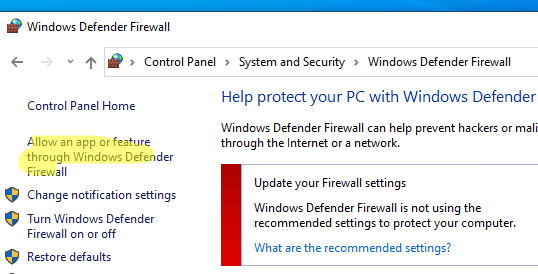
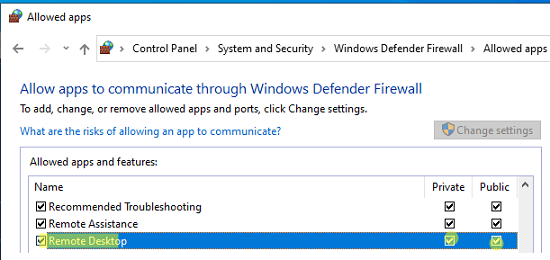
GUI check in Windows: “Allow an app or feature through Windows Defender Firewall” → ensure Remote Desktop is allowed for the active profile.
Run on the server as Administrator:
# Enable RDP
Set-ItemProperty -Path 'HKLM:SystemCurrentControlSetControlTerminal Server' -Name 'fDenyTSConnections' -Value 0

# Require NLA (recommended)
Set-ItemProperty -Path 'HKLM:SystemCurrentControlSetControlTerminal ServerWinStationsRDP-Tcp' -Name 'UserAuthentication' -Value 1

# Enable built-in firewall rules for Remote Desktop
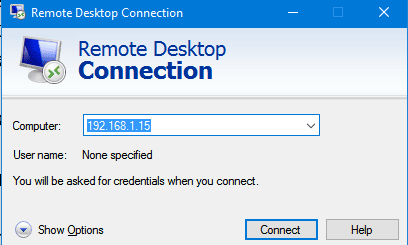
Enable-NetFirewallRule -DisplayGroup 'Remote Desktop'Press Win + R → type mstsc → enter the server IP/hostname → Connect.
Use Show Options to enable clipboard sharing and (if needed) drive redirection.
Install Microsoft Remote Desktop → Add PC → enter IP/login/password → connect. The client supports scaling, full screen, clipboard, and display optimizations.
For GUI, Remmina is the most convenient. In the terminal, use FreeRDP:
xfreerdp /u:Administrator /p:'YourPassword' /v:203.0.113.10 /dynamic-resolution /clipboardTip: if certificates are not trusted (common for first setup), FreeRDP may require additional flags depending on distro. Prefer using a proper certificate and secure access path in production.
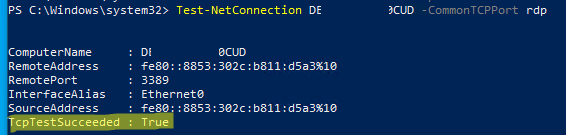
On the client (Windows PowerShell):
Test-NetConnection 203.0.113.10 -CommonTCPPort RDPIf TcpTestSucceeded : True, the port is reachable. If not, the problem is usually provider firewall, Windows Firewall, wrong IP/port, or the service is not listening.
SERVERNAMEAdministrator or DOMAINUser.Add a user to “Remote Desktop Users” (example):
Add-LocalGroupMember -Group "Remote Desktop Users" -Member "YourUser"Ensure RDP is allowed from your network in both layers:
Sometimes RDP over UDP can behave poorly on unstable networks. For troubleshooting, you can temporarily force the client to use TCP only (do this only for diagnosis, then decide based on results).
Example client-side policy key (Windows):
# Disable UDP transport on the CLIENT (policy-based)
# Requires admin and usually a restart of the client machine
New-Item -Path "HKLM:SOFTWAREPoliciesMicrosoftWindows NT" -Name "Terminal Services" -Force | Out-Null
New-Item -Path "HKLM:SOFTWAREPoliciesMicrosoftWindows NTTerminal Services" -Name "Client" -Force | Out-Null
New-ItemProperty -Path "HKLM:SOFTWAREPoliciesMicrosoftWindows NTTerminal ServicesClient" -Name "fClientDisableUDP" -Value 1 -PropertyType DWord -Force | Out-Null# Replace x.x.x.x with your public IP
New-NetFirewallRule -DisplayName "RDP (3389) - My IP only" -Direction Inbound -Protocol TCP -LocalPort 3389 -RemoteAddress x.x.x.x -Action AllowConnecting via RDP is straightforward when you control three things: RDP enabled, port access (provider + Windows Firewall), and secure authentication (NLA + restricted access). This is the correct baseline for any production Windows VPS on VPS hosting. For an extra security layer, many teams use a Linux VPS as a VPN/jump host and keep RDP closed to the public internet.